
Setting Up Your Workspace
Sign up, structure your organisation and teams, and connect integrations.
Learn how to set up your Organization, Teams, and Members so you can collaborate securely and scale work across projects.
Signing up
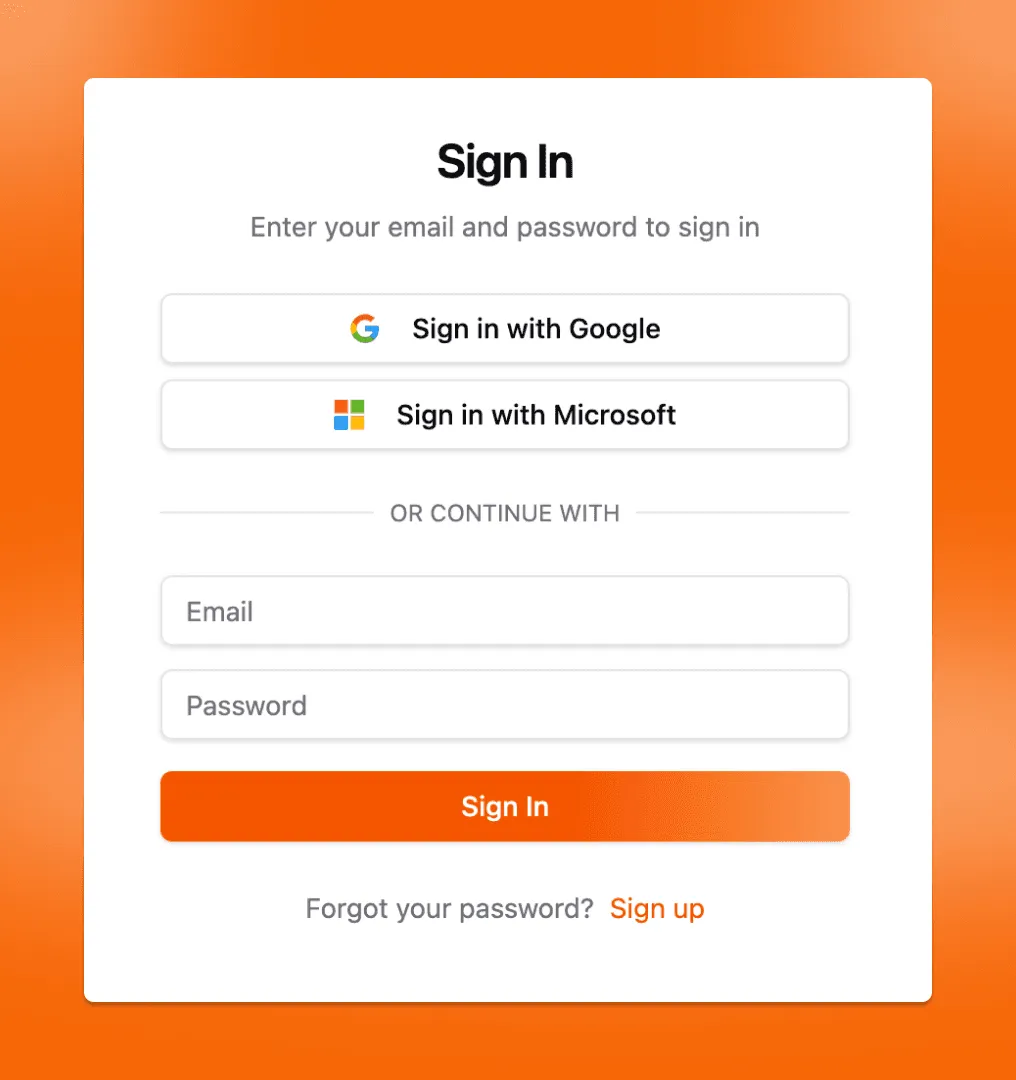
Create your Normain account in under a minute in one of two ways:
- Email & password: sign up with your work email
- Social log-in: one click sign in with Microsoft or Google credentials
If you forget your password, simply click Forgot Password on the login screen
and follow the reset link sent to your email.
Workspace structure
Normain is built around a simple structure that helps you keep work organised and access controlled.
In Normain, all work belongs to an Organization. Each Organization contains Teams, and each Team contains Extractions.
- Organization: your company environment in Normain
- Teams: workspaces for specific projects, departments, or client work
- Extractions: where you upload files, define insights, and extract results
Your workspace is ready instantly
As soon as you sign up on Normain, you can start exploring right away.
Normain automatically creates a personal Organization and a personal Team within it, so you have a dedicated space to explore the product, test workflows, and run your first extractions.
Turning your workspace into your company workspace
Your personal Organization can easily become your shared company workspace.
You can:
- Rename your Organization to your company name
- Invite teammates to join
- Create additional Teams to separate work across projects, departments, or clients
This is the recommended setup once you move from testing into real work.
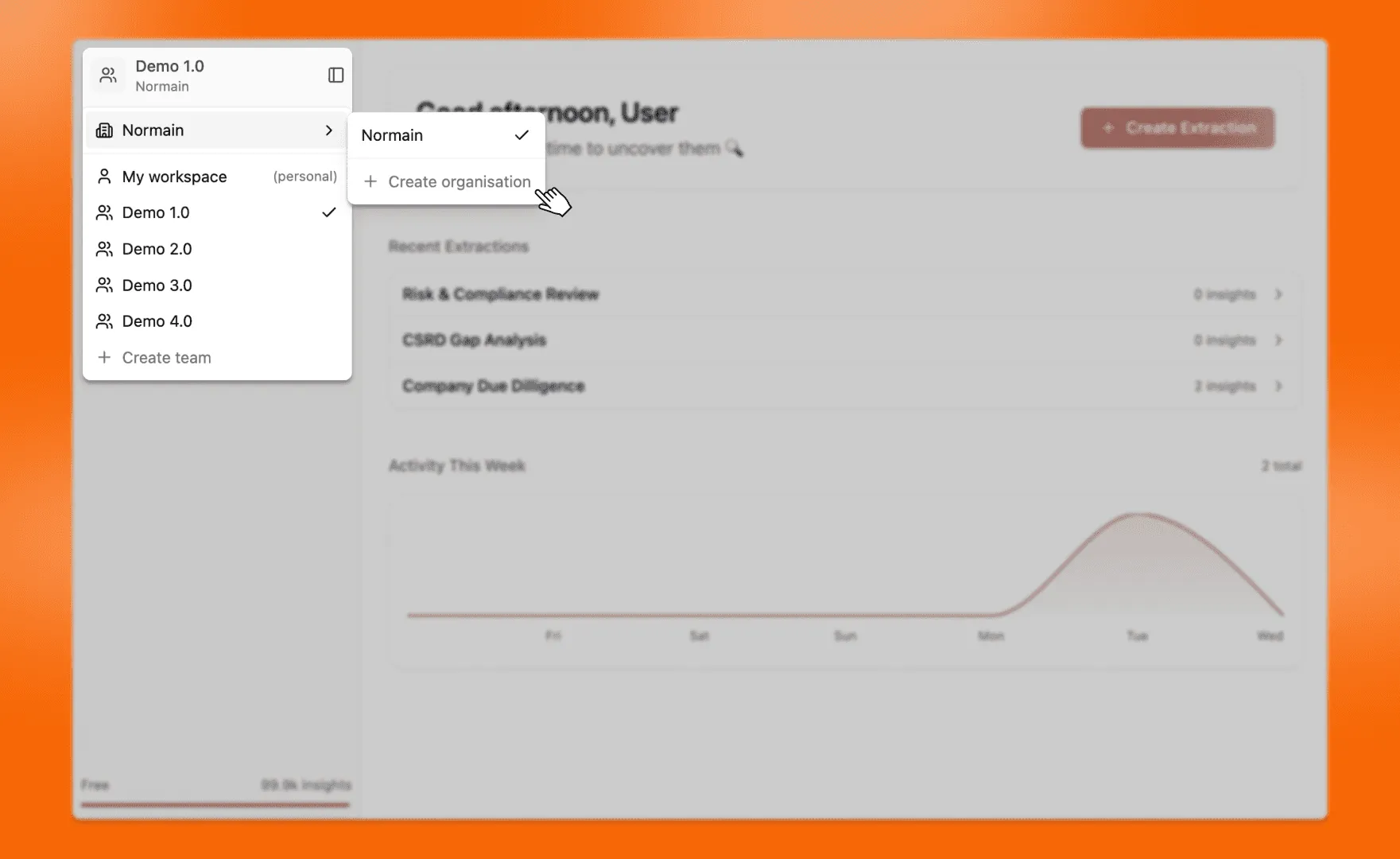
Create an Organization
An Organization is the top-level workspace in Normain. It represents your company and contains one or more teams.
To create an Organization:
- Open the sidebar
- Click on your team name to open the drop-down
- Click
Create organization - Enter a name and confirm
Create a Team
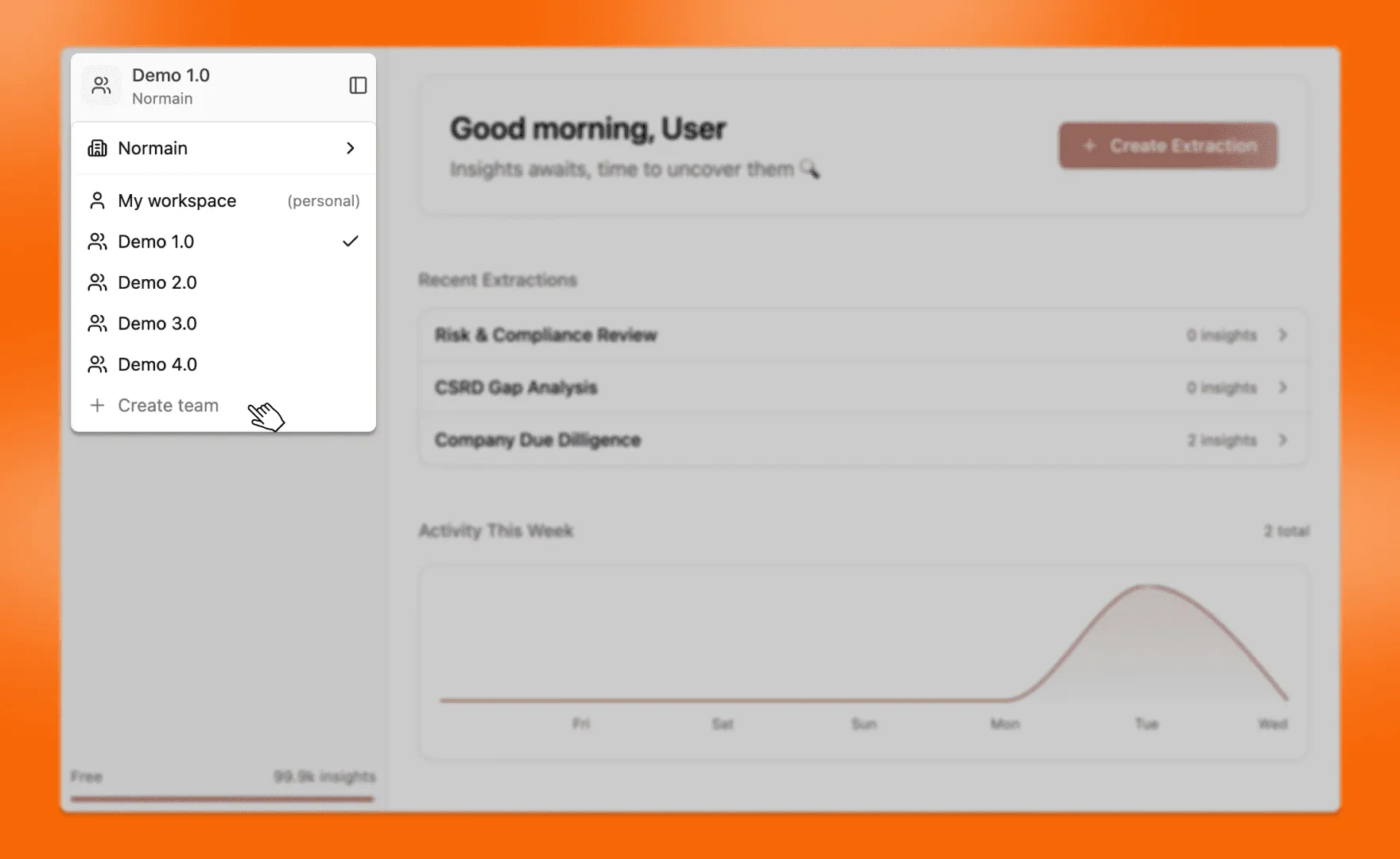
Inside your Organization, you can create multiple Teams to separate work and control access across departments, clients, projects or use cases. Each Team contains its own extractions and can be connected to different file sources.
To create a Team:
- Open the sidebar
- Click on your team name to open the drop-down
- Click
Create team - Enter a name and confirm
Invite members to an Organization
Normain supports Organization-level membership and Team-level access. This keeps collaboration simple while still protecting sensitive work.
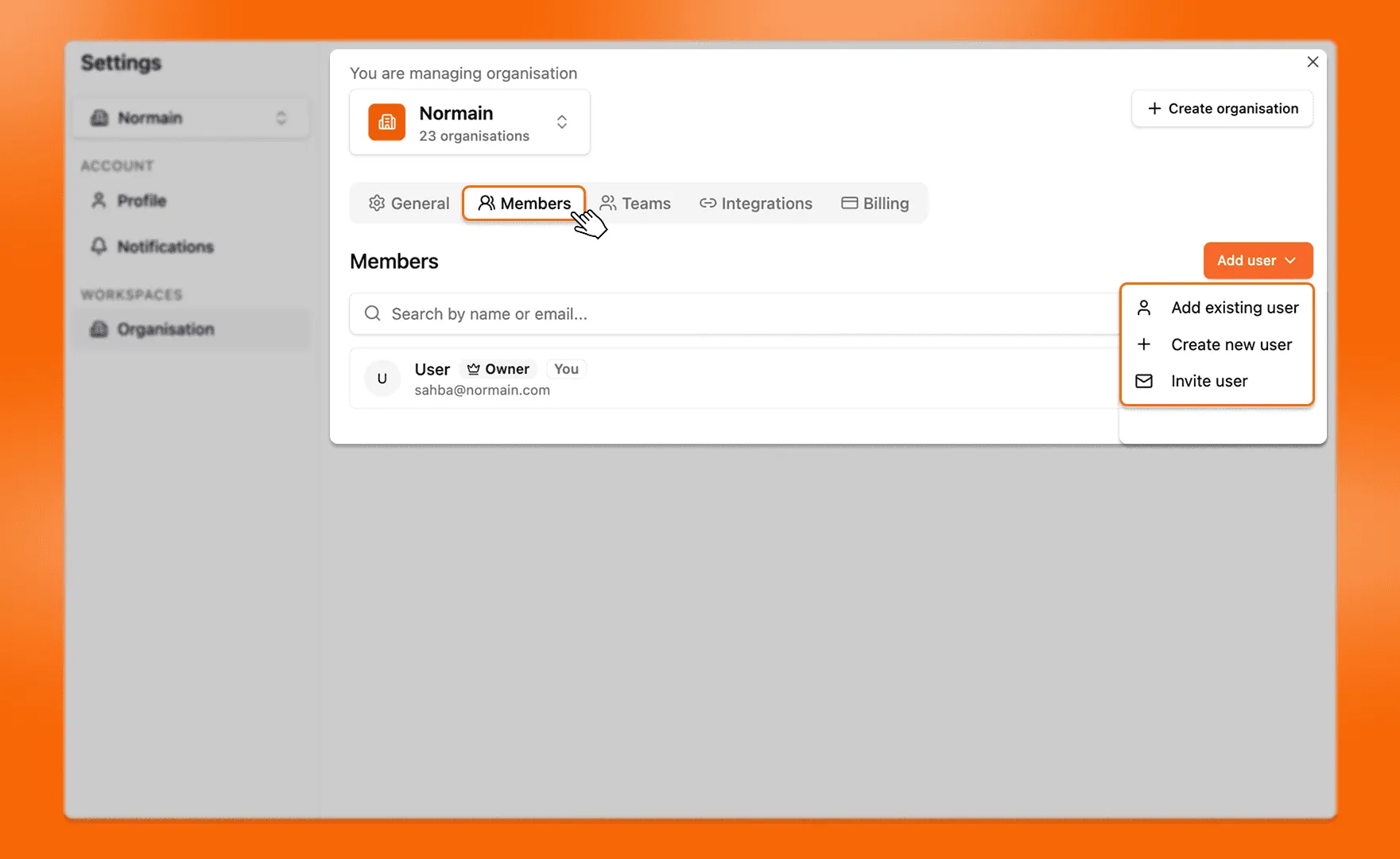
- Click on your profile in the bottom left corner
- Go to
Settings - Select the relevant Organization
- Open the
Memberstab - Click
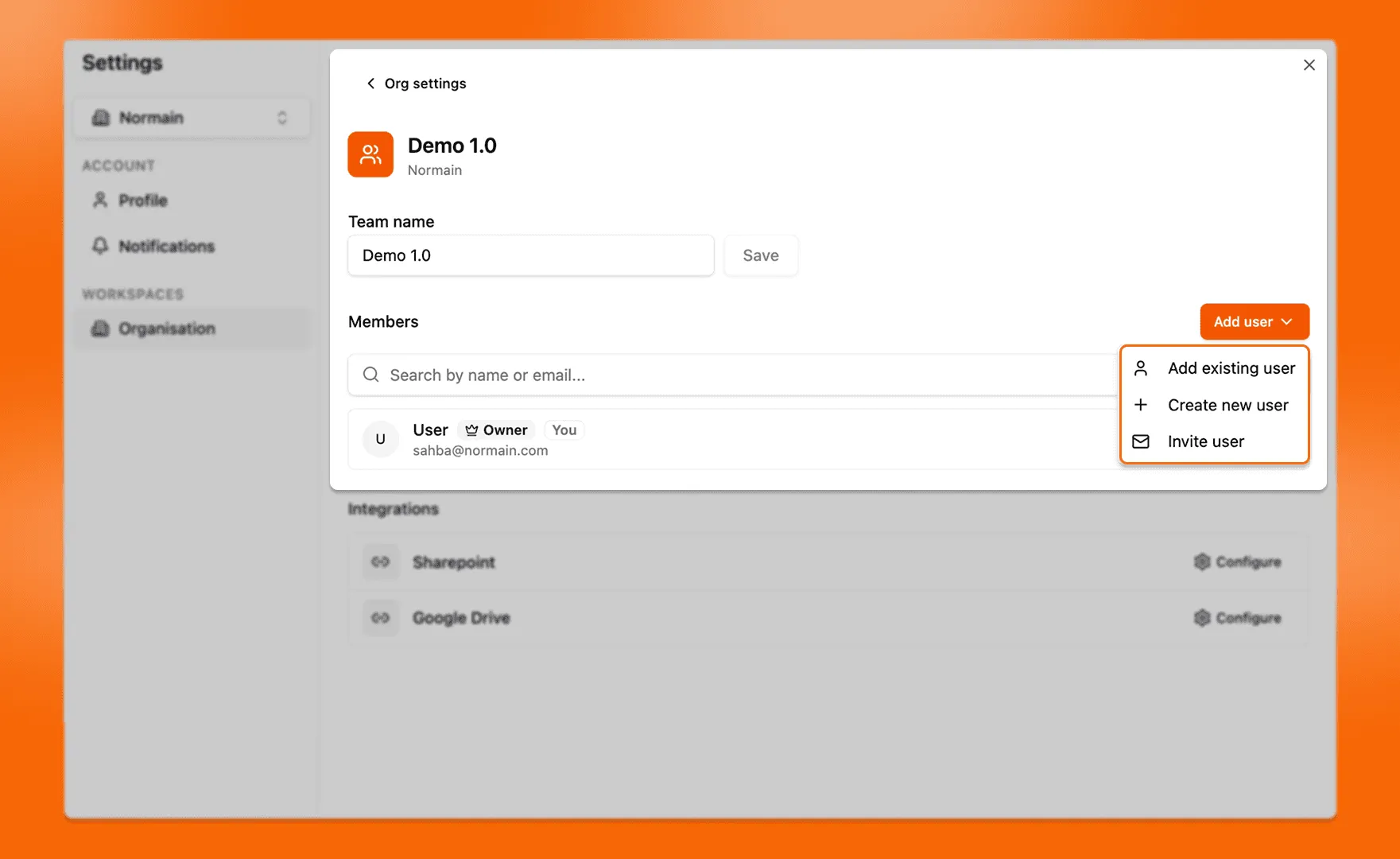
Add Userand select one of the following:Add existing user— add someone who already has a Normain profileCreate new user— register their email and set an initial passwordInvite user— send an invite link to their email
Owner vs member
An Owner is the highest level of administrator for your Organization. Owners can:
- Assign and remove other Owners
- Create and remove Teams
- Assign Team file accesses
- Create new members
- Add members to Teams
- Reset members’ passwords
- Manage access to connected integration sites
This makes it easy to scale access safely while keeping control in the right hands.
Managing access (Organization level)
Organization Owners control who has access to the Organization and what role they have. Team owners manage access within their specific Team.
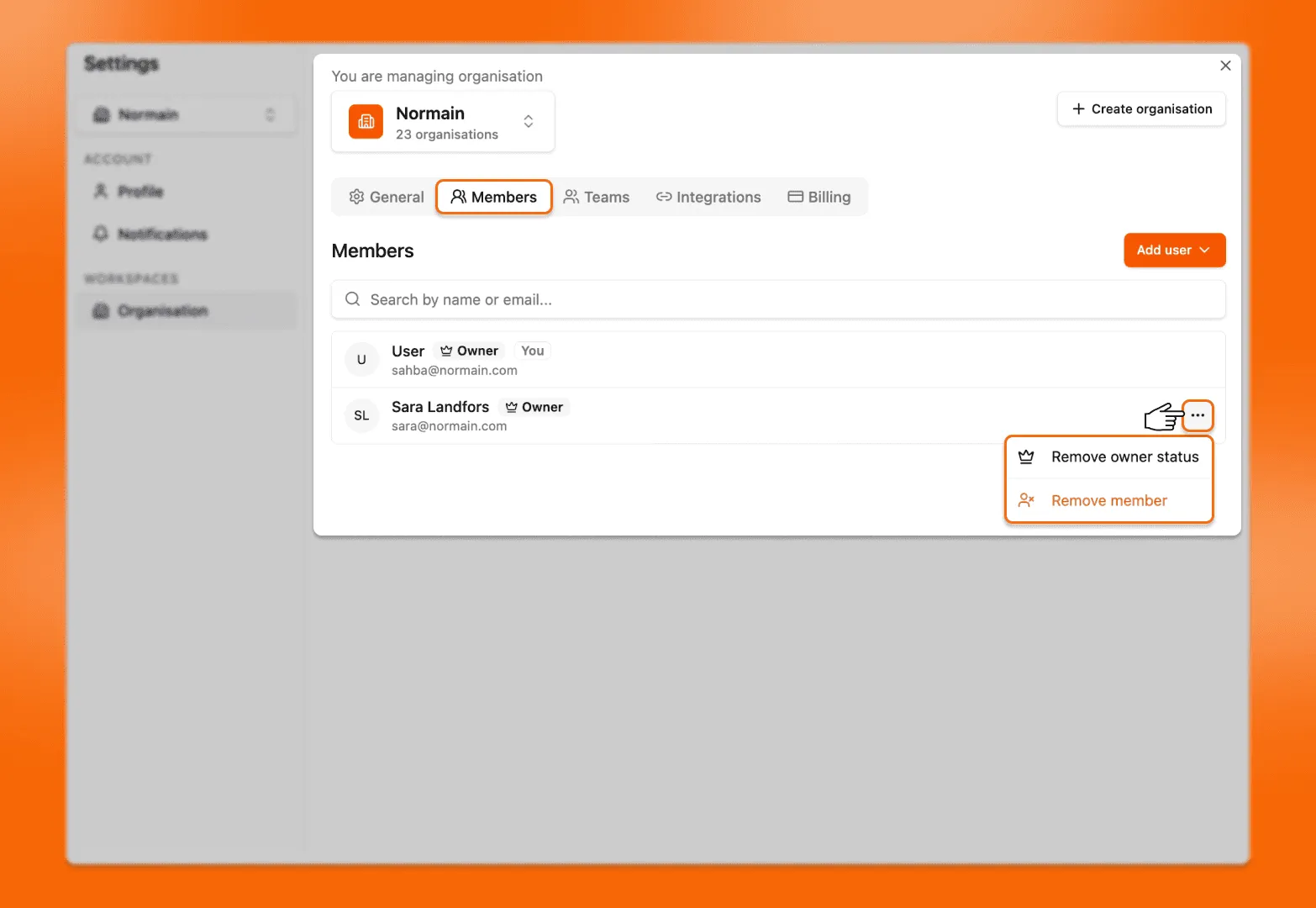
Managing Organization members:
- Click your profile on bottom of the left panel
- Go to
Settings - Open the
Memberstab - Select
…next to a user to:- remove a member
- promote a member to an owner
- remove owner status
Managing access (Team level)
Team access is managed separately from Organization membership. This gives you more control over who can access which extractions and files.
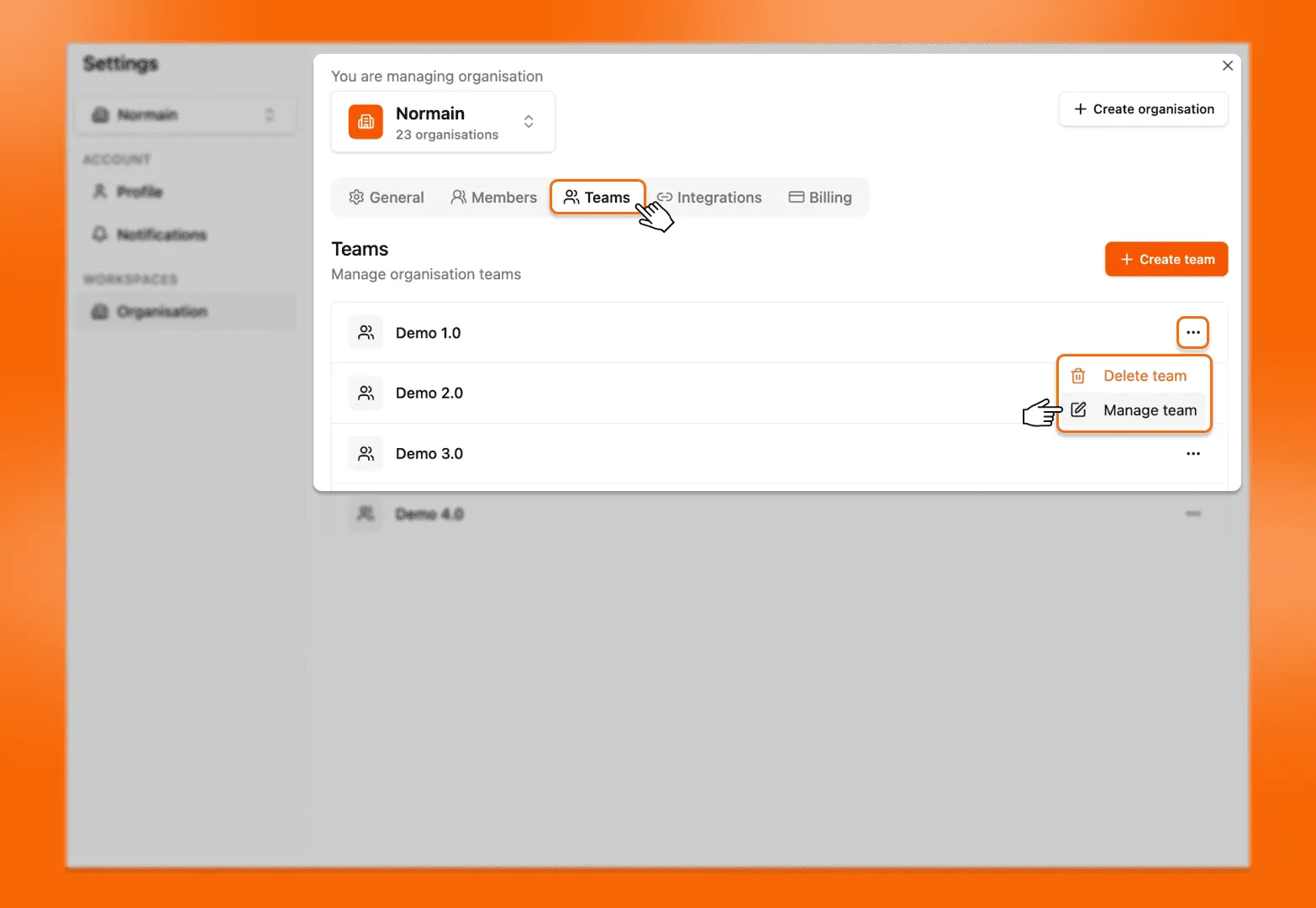
Managing a specific Team:
- Go to
Settings - Open the
Teamstab - Find the relevant Team and click
… - Choose one of the following:
Manage Teamto add or remove members to the TeamDelete Teamto remove the Team entirely
Integrations
Integrations let you connect cloud storage so teams can import files directly and work from shared sources.
Integrations are added continuously. Normain currently supports:
- SharePoint
- Google Drive
- Box
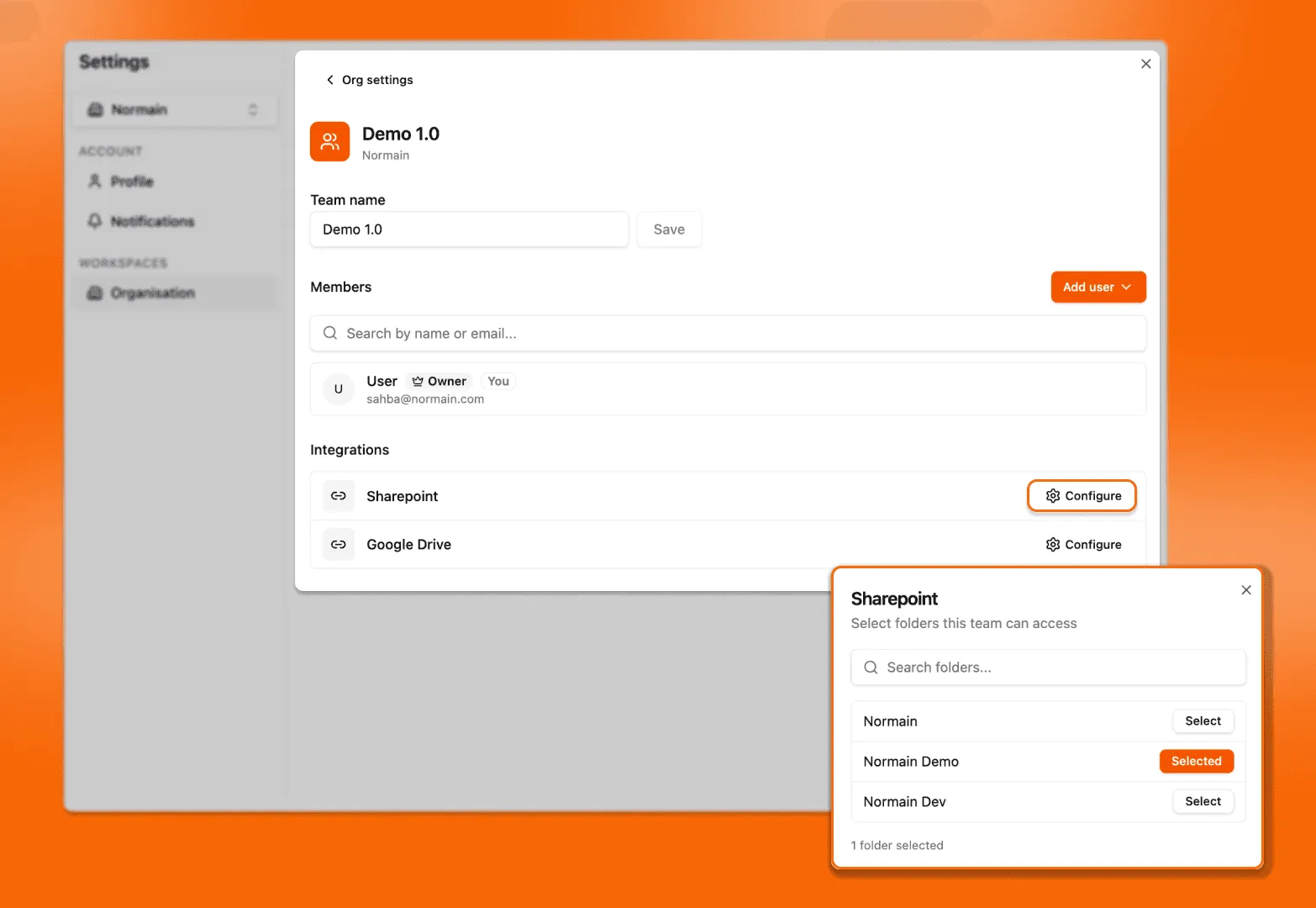
Integrations are configured at the Organization level and relevant sites are assigned by Organization Owners to Teams based on access needs.
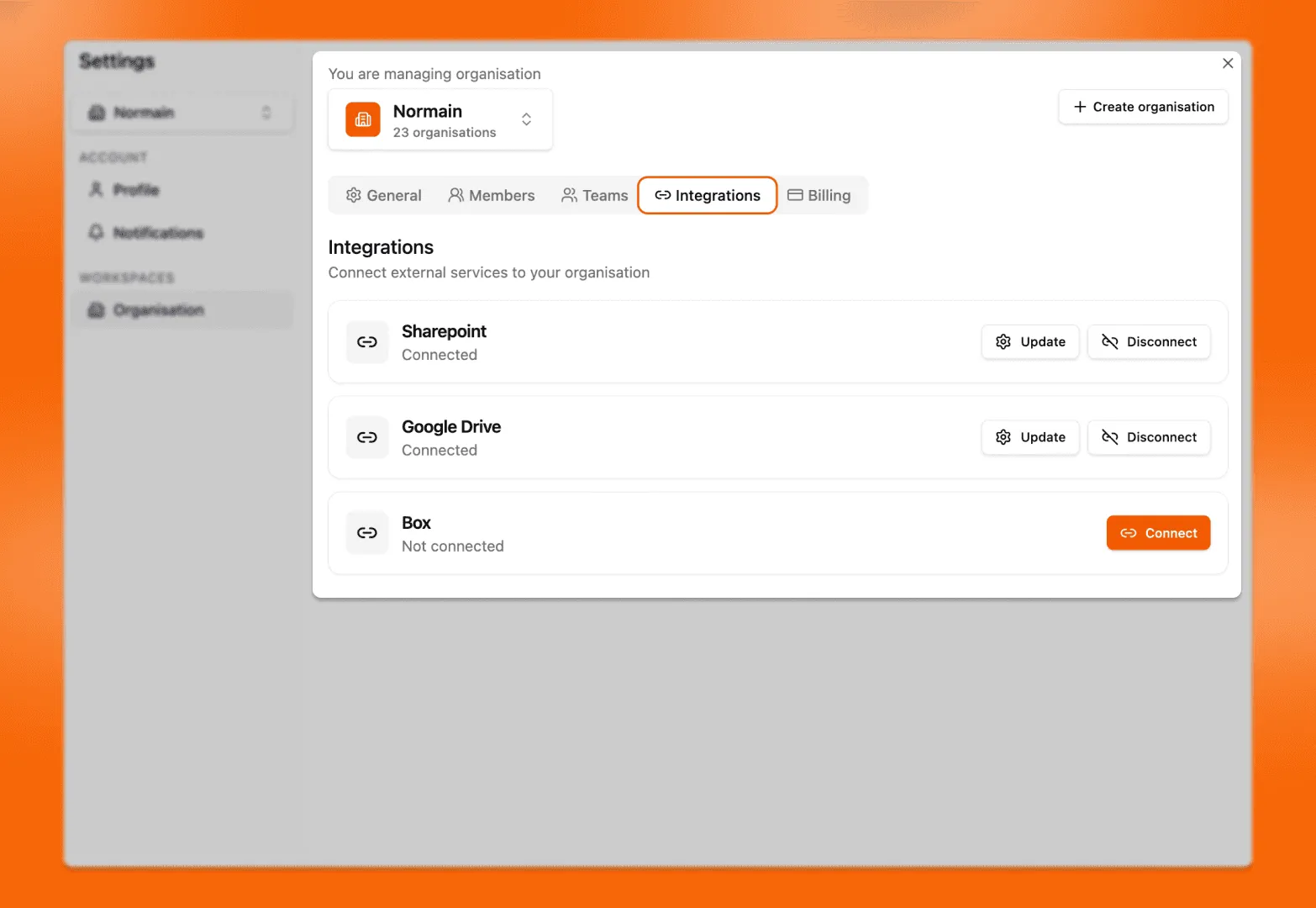
Connecting an integration (Organization Owners)
- Go to
Settings - Open your
Organization - Select
Integrations - Click
Connecton the provider - Enter credentials and save
Managing Team access to integrations
Once an integration is connected at Organization level, Organization Owners can control what each Team can access. This ensures each Team only sees the files they are meant to work with.
- Go to
Settings - Open your
Organization - Go to
Teams - Select a Team
- Configure the integration access
- Choose the sites the Team can use
Account settings
Account settings are where you manage your personal profile and preferences.
To access settings, click Settings at the bottom of the sidebar, then go to
Profile.
Personal information
Your profile includes:
- Display name (editable)
- Profile picture — upload a PNG, JPEG, WebP or GIF, or remove the current one
- Email address (read-only)
Password
Update your password at any time by entering your current password and setting a new one.
Notifications
Open Settings and go to Notifications to choose which events send you an
email:
- Extraction completed — an extraction run finishes
- Result assigned to you — someone assigns a result to you
- Mentioned in a comment — someone mentions you, or replies to your comment
In-app notifications appear under the bell in the top bar, where you can filter by All, Unread or Mentions. These are always on and are not affected by the email settings above.