
Quick Start
Learn how to get started quickly and securely on Normain.
Master the fundamentals of Normain in minutes. For comprehensive feature exploration, see Working smarter with Normain.
Normain in three simple steps
- Upload files
- Define insights
- Extract and validate
These steps create one Extraction — a structured analysis unit housed within a project.
Creating a project
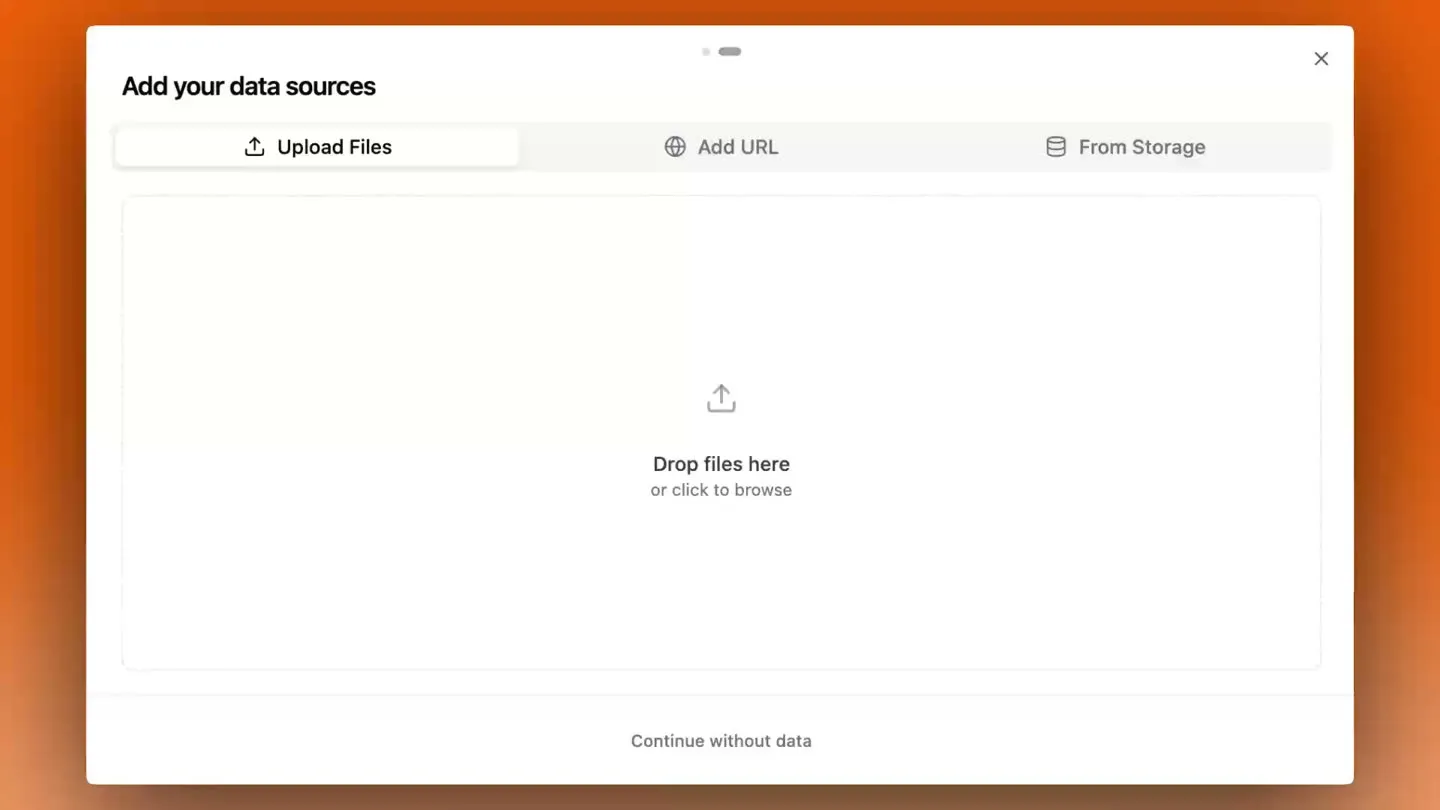
Step 1: Upload files and links
Normain accepts multiple input types:
- Files — drag and drop PDFs, spreadsheets, images and documents
- URLs — paste web pages for extraction (single-page, not site-wide)
- Cloud storage — Google Drive, SharePoint and Box integration
- Custom sources — write or dictate directly into Normain for internal definitions and context notes
Step 2: Define insights
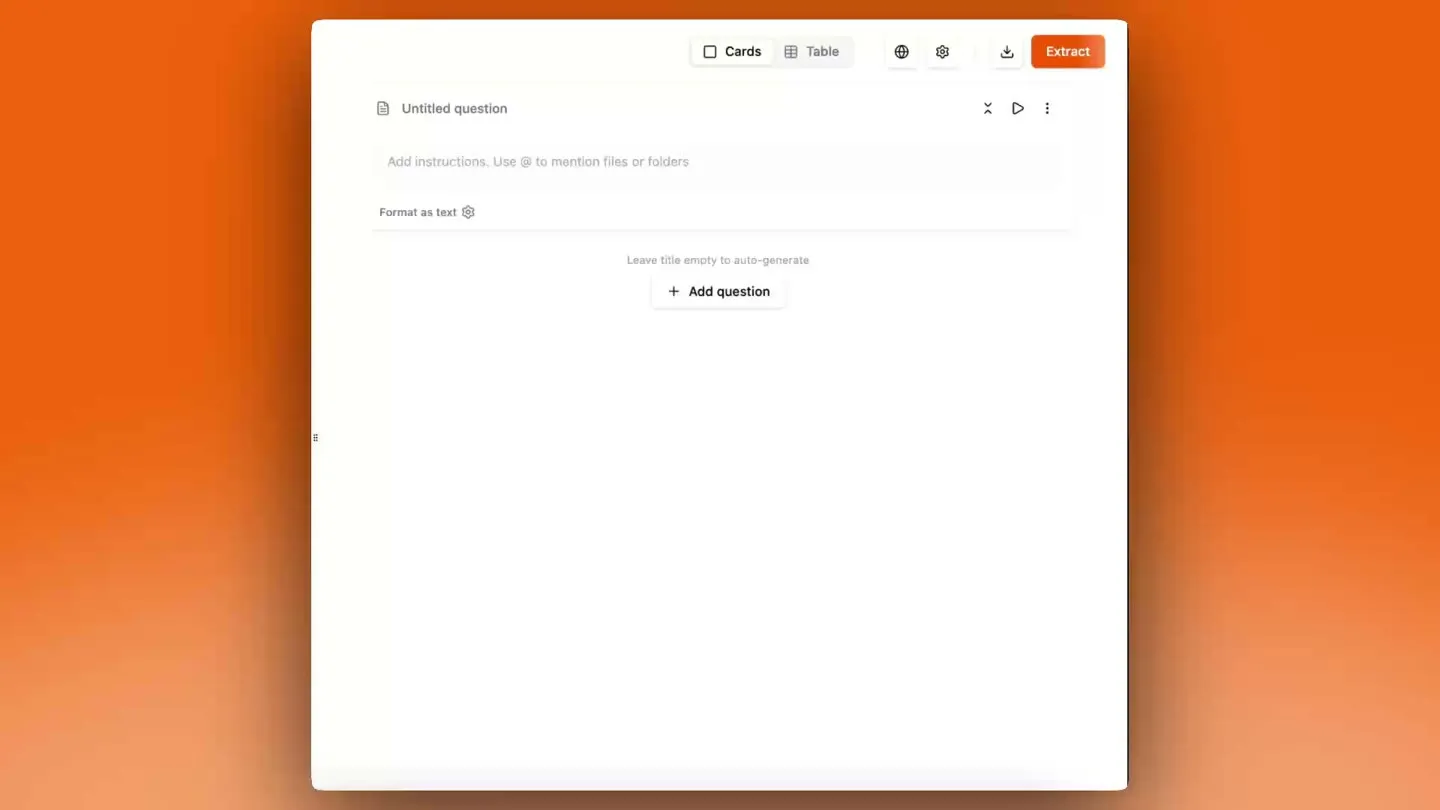
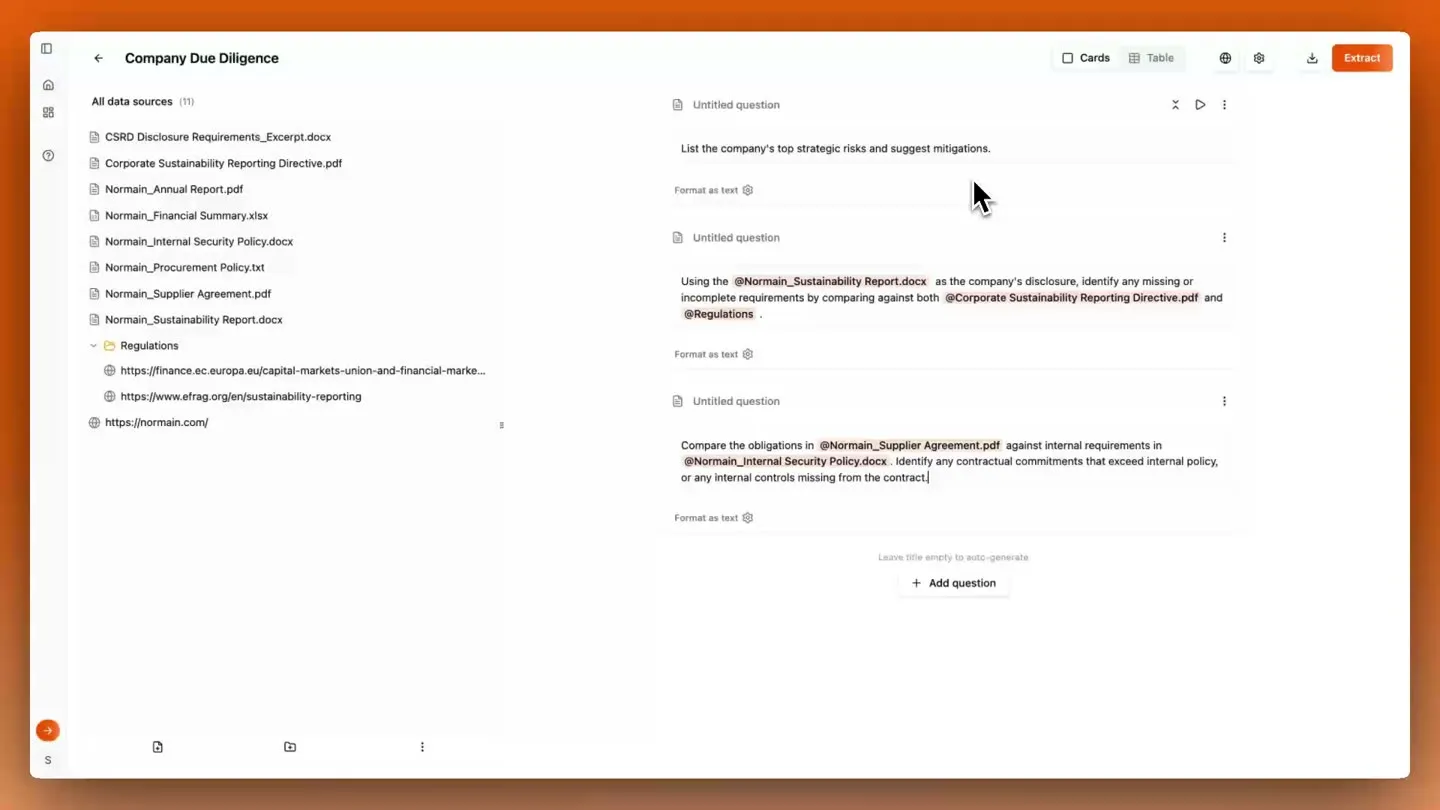
Insights describe what you want to extract, using plain language.
- Click
Add insight - Enter a title (e.g. “total revenue”) or leave it blank for auto-generation
- Write your question or instruction
Questions range from simple extractions (“What is total revenue?”) to advanced analysis (“Compare against CSRD requirements and identify missing disclosures”).
Step 3: Extract and validate
- Click
Extract - Monitor real-time progress
- Validate using the Trust Panel
The Trust Panel gives you detailed source references with highlighted excerpts, confidence indicators for result reliability, a reasoning breakdown showing how Normain arrived at each answer, and validation tools for feedback and re-running specific insights.
Step 4: Export
Click Download to export results as a spreadsheet, including extracted
insights, confidence levels and source references.
Set up with Chat
Chat simplifies extraction creation — describe what you need in plain English.
- Open the chat panel from any extraction view
- Describe your analysis needs (e.g. “Create a spreadsheet with one row per regulatory update”)
- Review and run — chat configures and executes automatically
- Refine by adding or removing columns, or editing instructions
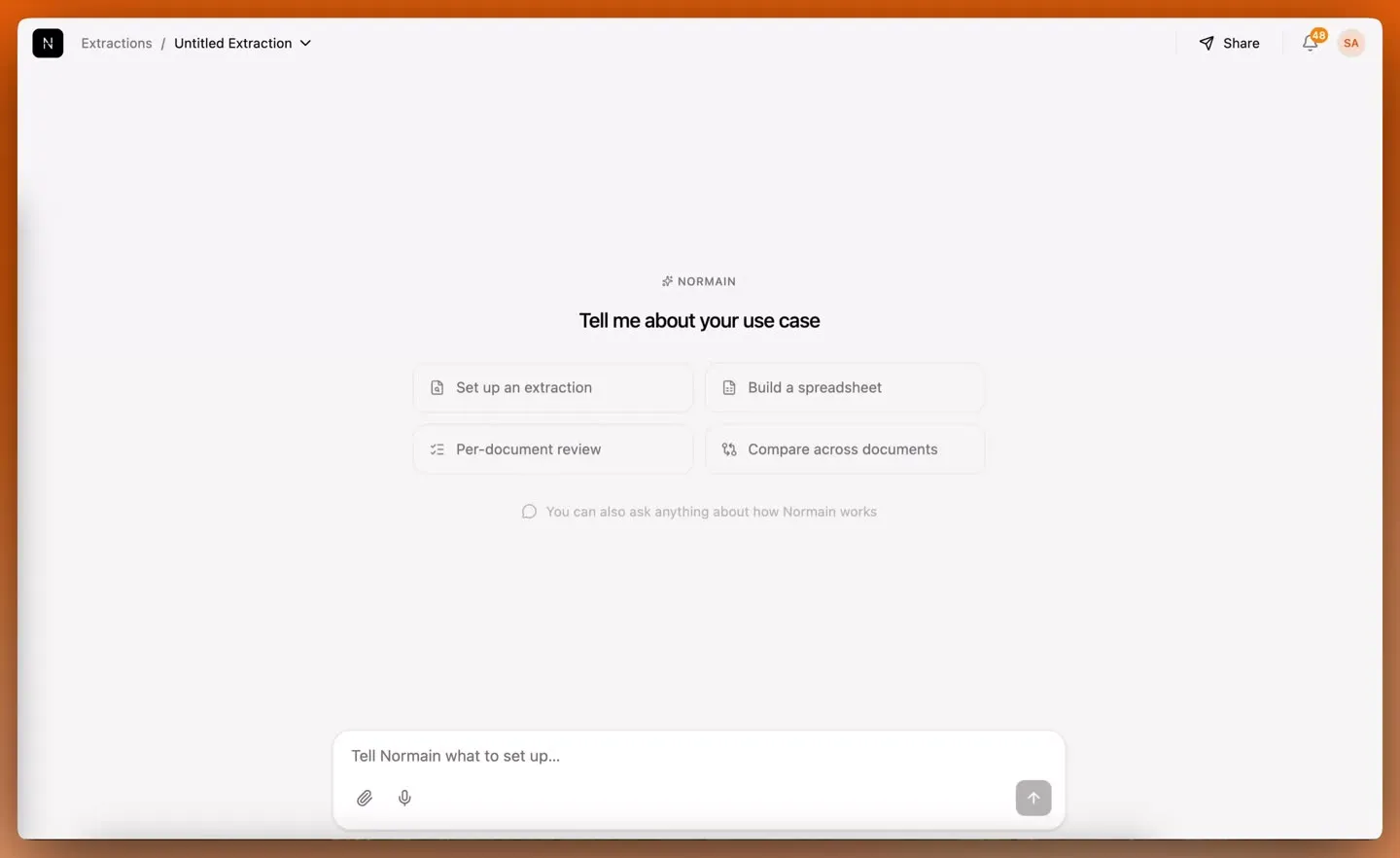
Chat sets up entire projects or extractions from descriptions, answers questions about extraction data and patterns, and is scoped to the current project.
Extraction views
Card view
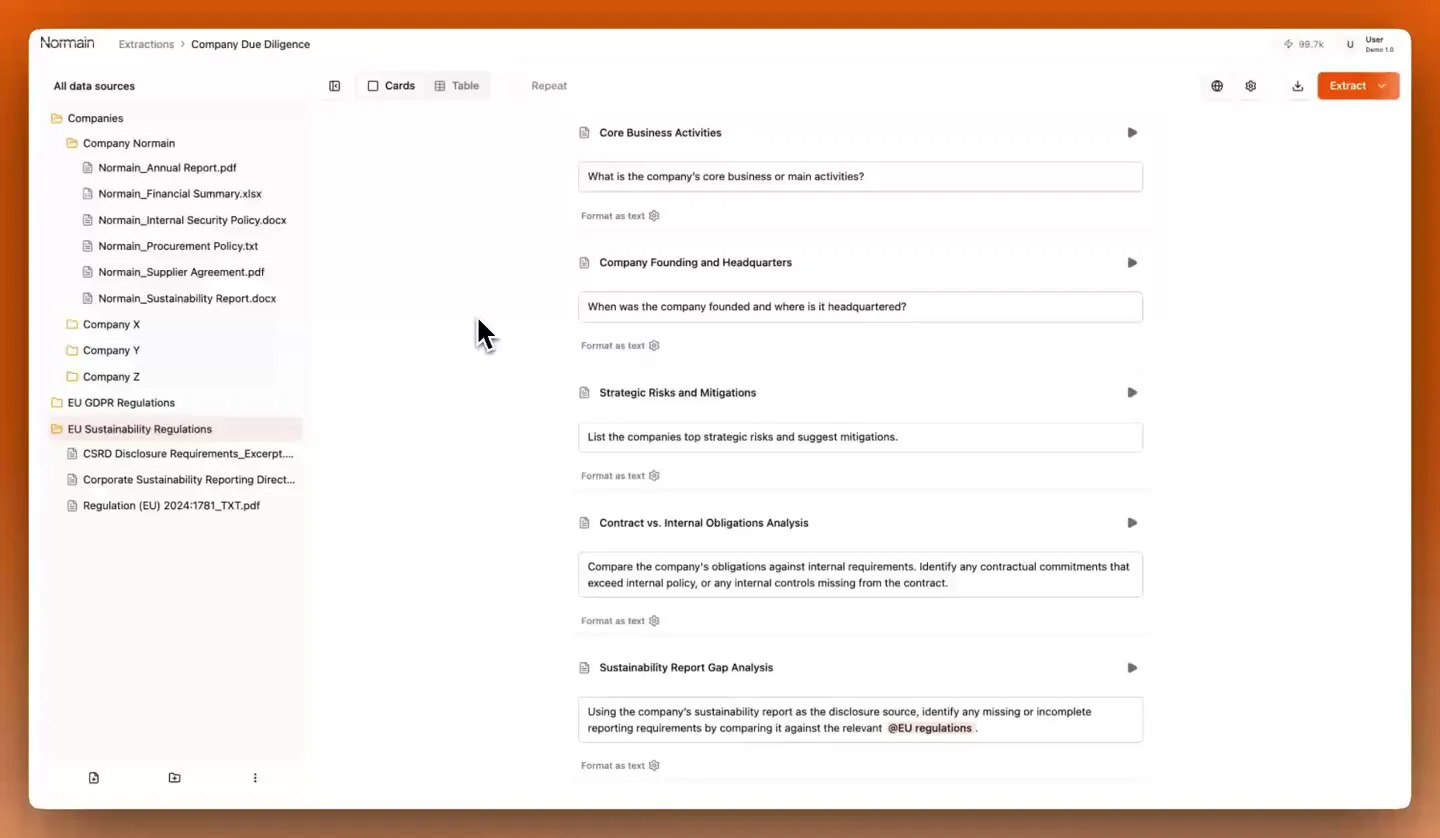
The default view, extracting insights across selected sources in one run.
Best for: document-style result formatting, multi-document analysis and cross-referencing, and one-off tasks requiring full source context.
Speed tips: use the Global Prompt for shared context, start with one file to confirm wording, set output format per insight (text, number, date, yes/no), and tag specific files in prompts.
Table view
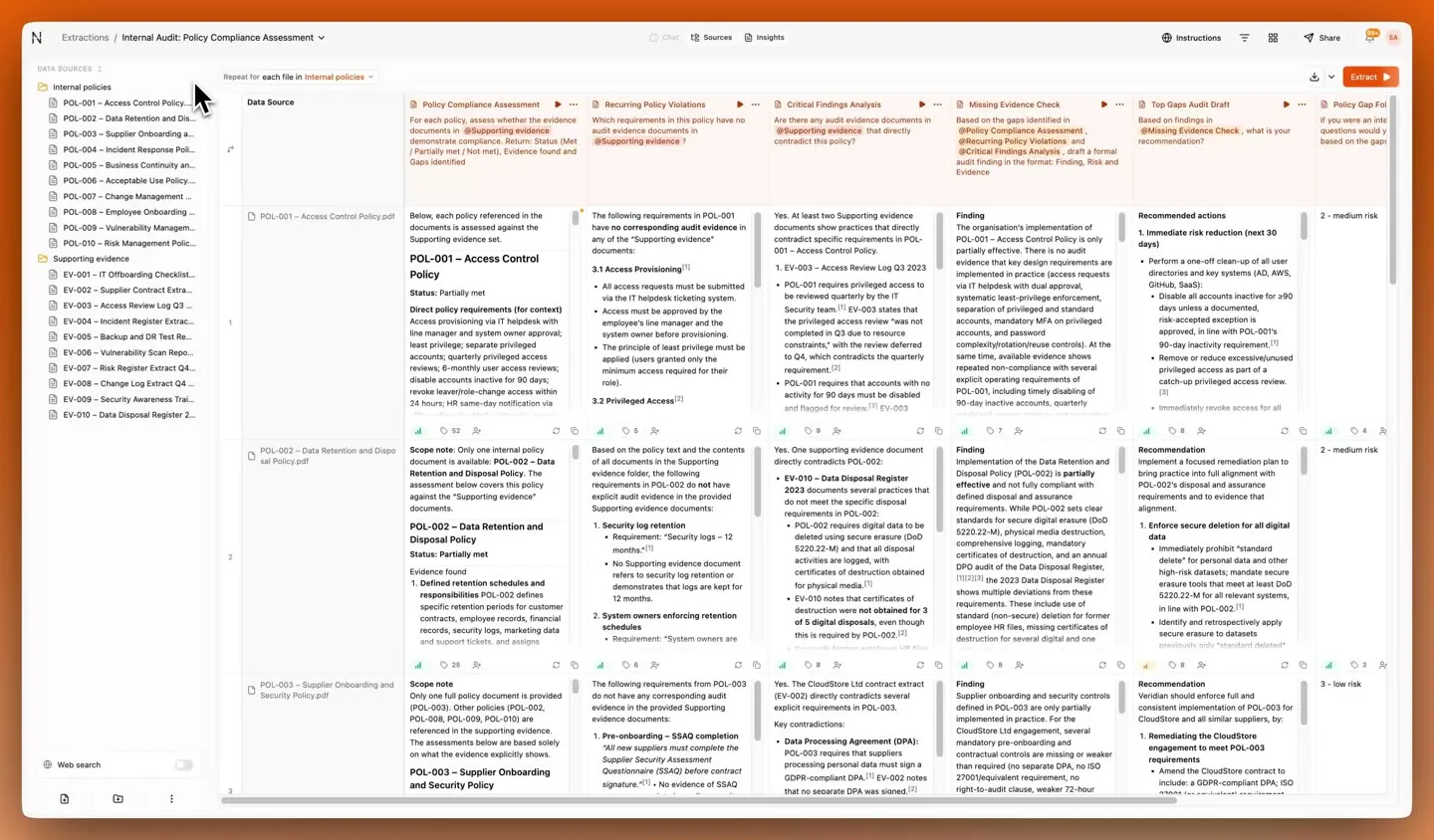
A spreadsheet-style view for speed and scale, displaying insights as columns and rows. Best for many insights at once, and for Repeat Mode outputs across multiple files.
Repeat Mode in table view
Apply the same insights across multiple items at scale:
- Run due diligence extraction across 20 client folders
- Process 100 invoices as individual rows
- Extract contract terms consistently across agreements
- Perform regulatory gap checks per business unit
- Extract ESG KPIs across different reporting periods
Trust Panel deep dive
Click any insight to open the Trust Panel.
Source references
Every result traces back to the original document, showing the document name, the exact page, slide, sheet or cell, and a preview of the supporting content.
Confidence levels
Normain rates its confidence in every generated answer:
- High — likely correct
- Medium — review recommended
- Low — manual check needed
Validation workflow
- Review results, prioritising low-confidence insights
- Mark correct answers
- Select underperforming insights and click Feedback
- Choose feedback options or write custom instructions
- Re-run with refinement support
- Compare new results against previous ones
Common feedback actions: search more thoroughly, shorten or expand results, or add custom instructions.
Collaboration
Teams can structure review by assigning insights to specific members, approving or rejecting reviewed insights, adding comments, and tracking completion progress in real time.
Projects and workflows
A project is the top-level container. Projects can hold single extractions or workflows — sequences of multiple steps.
A workflow is built from extractions (structured analysis of documents), manual input (team member text or file uploads), and deliverables (generated Word documents built from earlier step results).
Use Run all to execute every step sequentially, or Run one to execute a single step for iteration or refreshing.
Data security
Your data ownership remains unchanged. Normain does not train on your data and does not share customer data, and access is controlled to authorised organisational users.
See Security and encryption for detail.