Best Practices
Get better, faster results — prompt patterns and workflow habits that scale.
Once you are comfortable with the basics, Normain’s advanced features help you work even smarter and scale your workflows further.
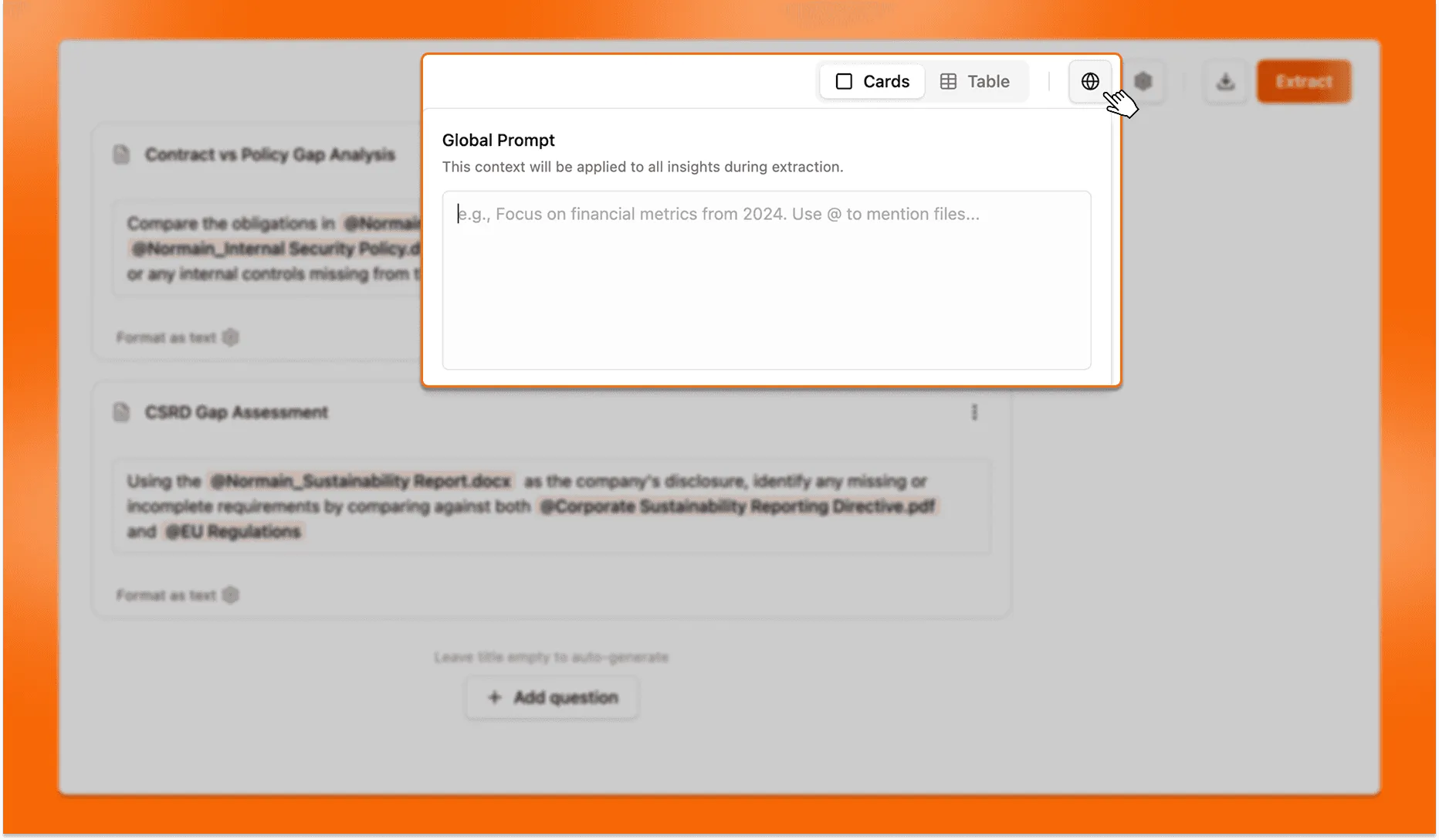
Global Prompts vs Insights Instructions
Insight instructions define what to extract for one insight and shape how the result is returned. They can be as simple as a single question, or as advanced as a full comparison, classification, or scoring workflow.
Global prompts are set at a global level, and apply to every insight in the Extraction. They set shared contexts and rules, and are useful for consistent scope and interpretation.
Examples include:
- “Focus only on 2024 data”
- “Ignore draft documents”
- “All documents are from Company X annual reports”
- “All insights should be in this language”
Tagging files, folders and other insights
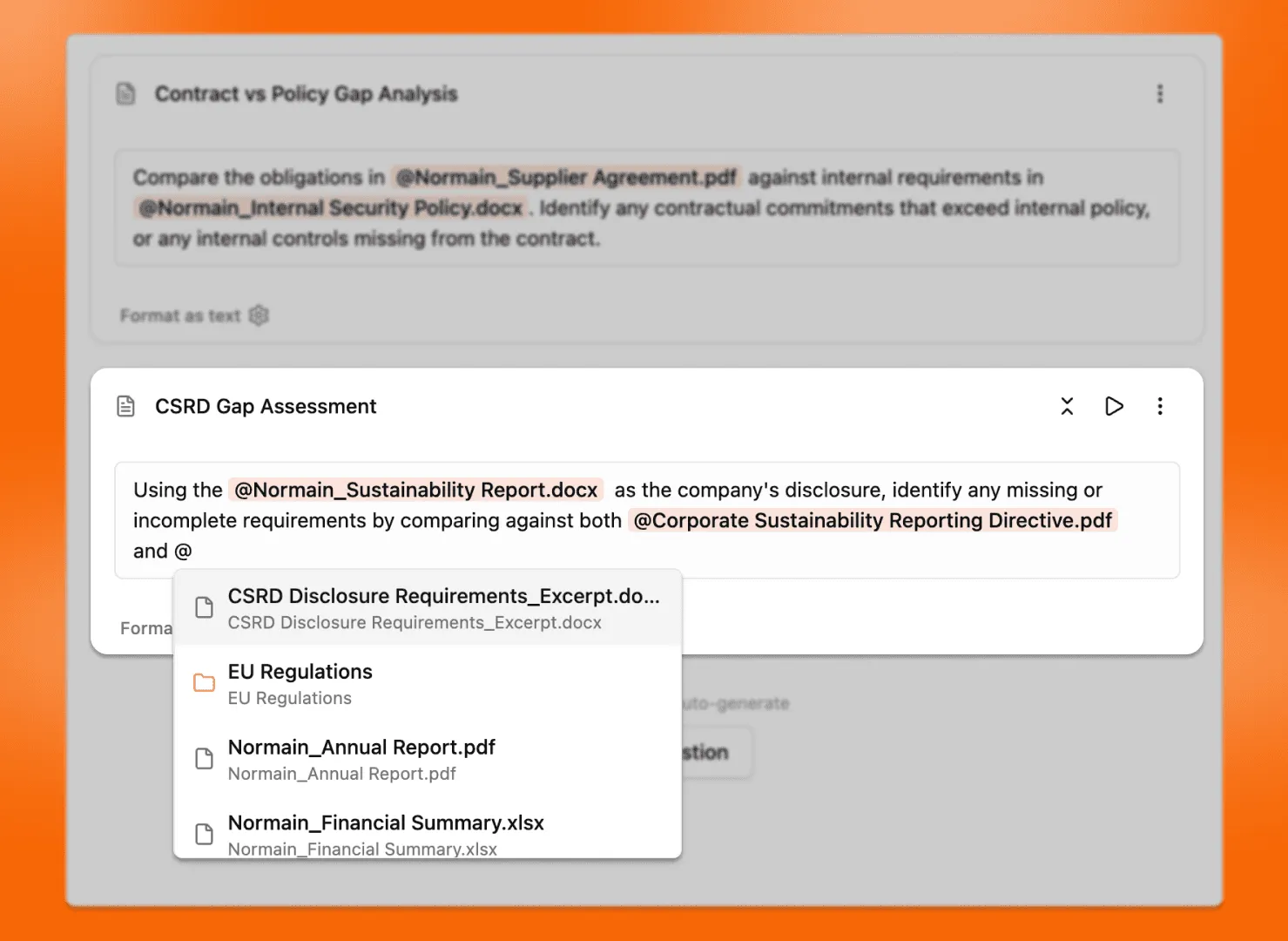
By tagging specific files or file groups in your instructions, you can direct Normain to the right sources instantly and run complex analysis across various types of inputs such as client data, regulations, and internal frameworks with full traceability.
You can also reference other insights in your instructions. This allows you to build on previous results and use extracted outputs as inputs for deeper analysis.
Examples include:
- “What is the total revenue of the company?”
- “Summarize the company’s business model and main revenue drivers.”
- “Compare KPIs in
@Client_ESG_Metrics.xlsxto targets in@Industry_Benchmark_Table.xlsx. Flag any KPI below benchmark and explain the gap.” - “Compare the client’s sustainability report in
@Client_Report_2024.pdfagainst the requirements in@CSRD_Legal_Requirements.pdf. List missing disclosures and explain what evidence is missing.”
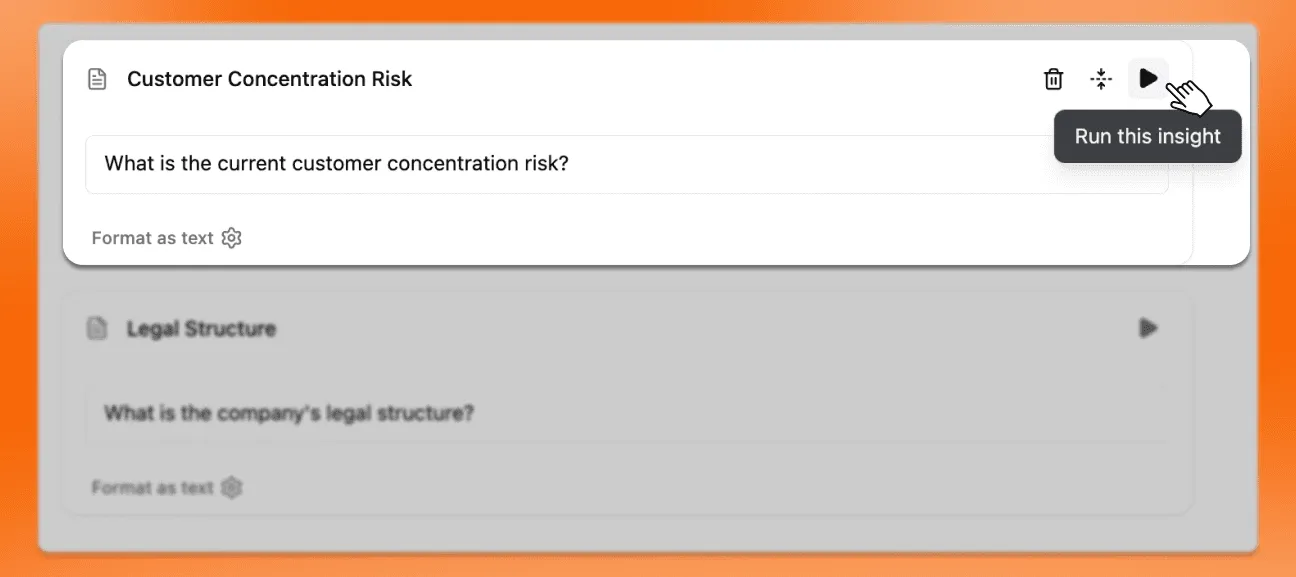
Run Individual Insights
Use this feature when you want to test or validate a specific insight without processing your entire dataset. It’s ideal for checking prompt quality, formatting, and expected results before running a full extraction.
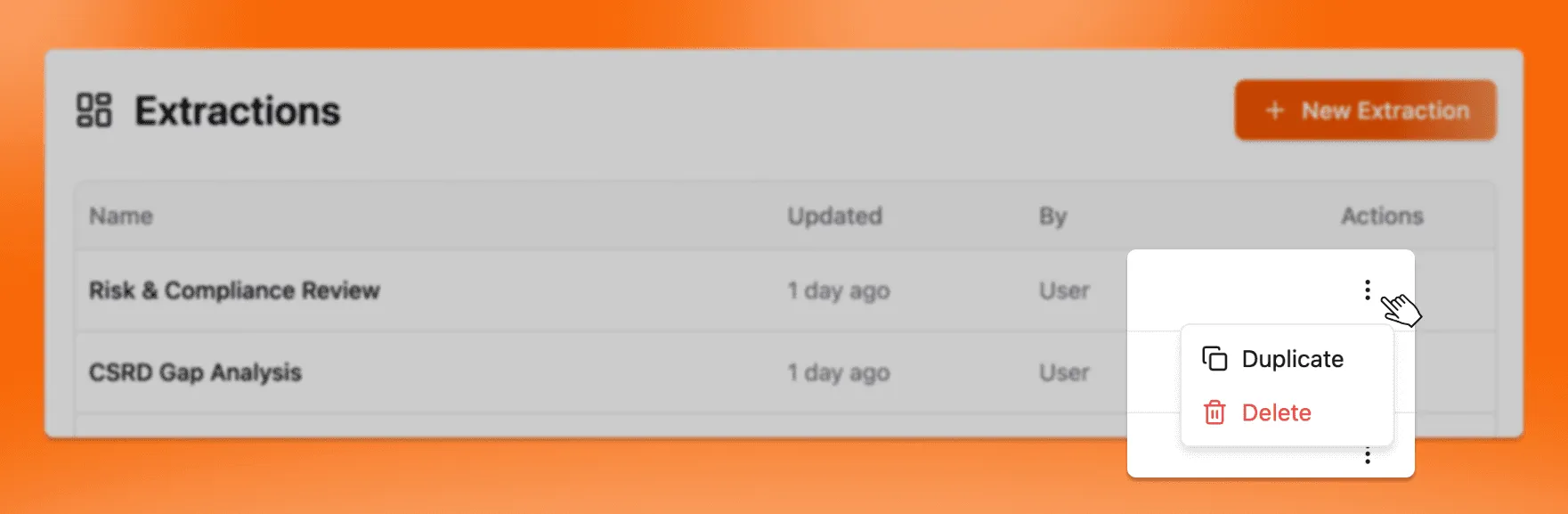
Duplicating Extractions
If you want to reuse a whole workflow, duplicating an extraction is a fast way to scale consistent work.
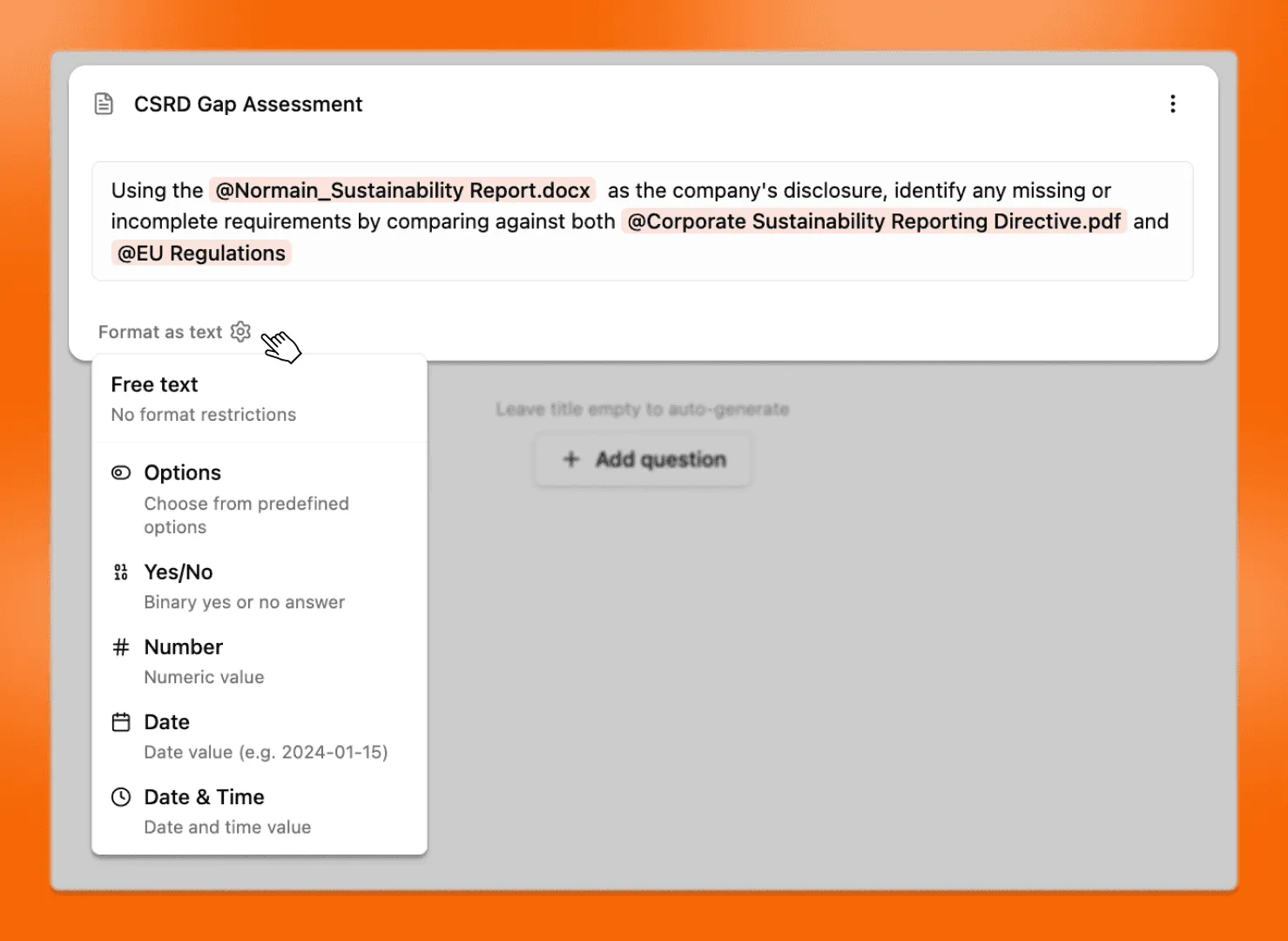
Formatting outputs
You can format each insight so the output matches how you want to use it.
Formats include:
- Free text
- Options
- Yes/No
- Number
- Date
- Date and time
Options format
Use this when you want your own, specific and consistent categorization.
- Open the insight settings
- Select Options
- Define your allowed values
- Normain returns one of the listed options
Extract for One or Multiple Insights
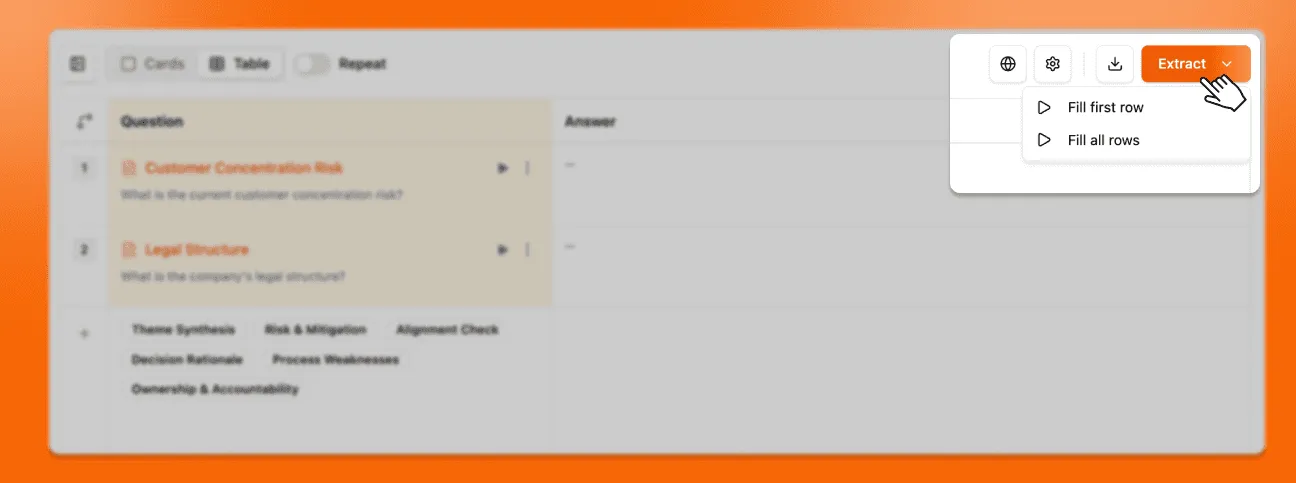
Once your prompts are ready, you can extract results for either a single card
/ row or the entire table. This choice appears when you press the
Extract button.
- Single row / card: A quick way to verify your prompt works as expected.
- All rows / cards: Generate results for every insight at once to complete your analysis efficiently.